Connect home, office and cloud LANs with HomeGrid VPN
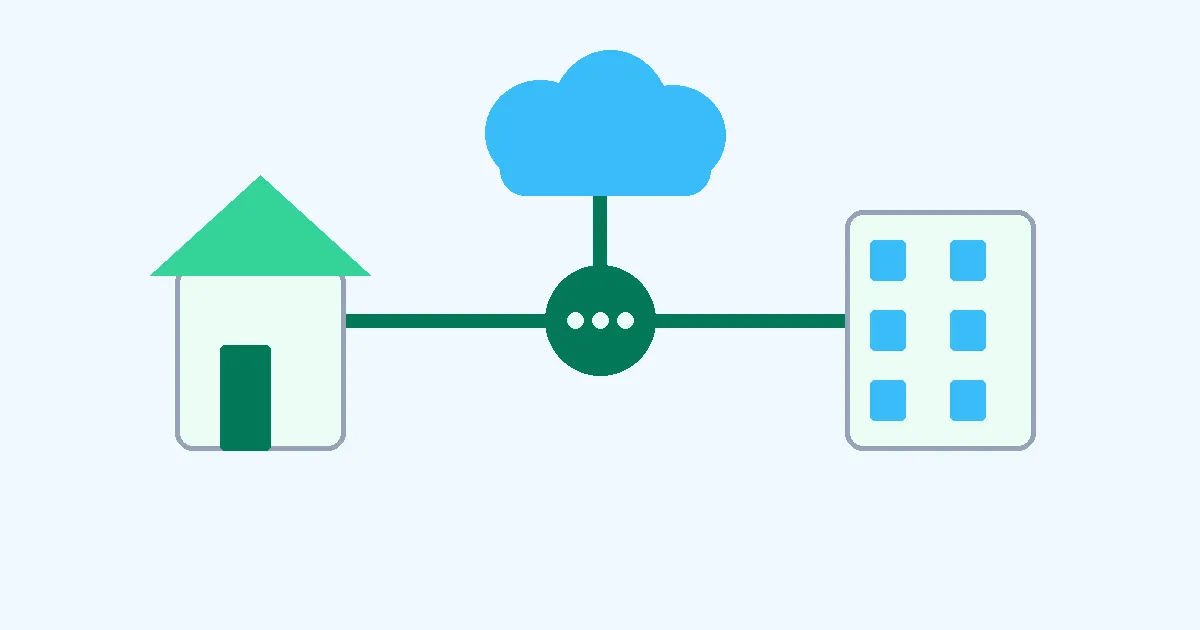
HomeGrid VPN lets you add a LAN by running a command generated in the dashboard on a Linux host inside that network. You can reach multiple permitted LANs without switching VPN destinations.
LAN ACL lets you choose which devices can reach each LAN using checkboxes in the dashboard. Adding a network and granting access to it are separate operations.
Use a Linux host as the LAN gateway
The Linux host relays traffic between the VPN and devices on its LAN. For example, a gateway on your home LAN provides a path to a NAS without registering every destination device as a separate Spoke.
For the Finder workflow, see how to access your home NAS from a Mac while away.
The same workflow can add an office LAN or a cloud network, such as an AWS VPC containing a Linux instance. Start with “Add a site LAN (VPC)” in the dashboard.
Before you begin
- Prepare a Linux host inside the network you want to add.
- Make sure you can run commands with administrator privileges.
- Keep one Spoke slot available for the gateway.
The LAN gateway counts as one Spoke. If all slots are occupied, remove an unneeded registered device or buy extra slots before generating the command. Keep the gateway powered on and connected while using it.
Add a LAN
1. Generate the command
Under “Add a site LAN (VPC)”, select “Generate one-liner”, then “Copy”.
The command contains a registration token. It expires in about one hour and can be used once. Run it on the intended host after generating it.
2. Paste and run it inside the target LAN
Run the copied command with administrator privileges on the Linux host that will act as the gateway. Use a host inside the LAN you want to add, rather than a remote laptop outside that network.
This article does not publish the download URL or registration token. Use the command generated in your own dashboard.
3. Check the detected subnets
The command detects up to five local private subnets and connects them to the VPN. AWS credentials are not required.
To specify the subnets explicitly, append an option such as:
--subnets 192.168.10.0/24,10.20.0.0/24
These are example addresses. Replace them with your network’s subnets, then confirm that the intended LAN appears in the dashboard.
Grant access with dashboard checkboxes
Open “LAN access control” in the dashboard. On a PC, this is an interactive matrix: rows are source devices and columns are destination LANs. Check the box where a device and a LAN meet to allow access. Clear an editable checkbox to stop allowing it.
The illustration above represents that actual dashboard operation; it is not a configuration table you need to write yourself. On a phone, the dashboard displays per-device cards instead of the matrix.
For example:
| Source | Home LAN | Office LAN | Lab LAN |
|---|---|---|---|
| Admin PC | Allowed | Allowed | Allowed |
| Family device | Allowed | Denied | Denied |
| Lab device | Denied | Denied | Allowed |
Unchecked devices are blocked from the destination LAN. Gateway rows can also allow access from their attached LAN to another LAN where that operation is supported. Check each direction separately when communication is needed in both directions.
Some entries cannot be changed. A gateway is always allowed to reach its own LAN, and devices marked “Not a source” cannot allow their attached LAN to initiate access into the VPN.
Changes are saved immediately but can take up to five minutes to apply. Wait for “Applied” before toggling the same entry again. Afterward, test both allowed and denied access.
LAN ACL works at LAN level. A rule allowing a gateway’s LAN does not select individual hosts behind that gateway. Restrictions for a particular NAS or service require separate consideration.
Choose the internet exit separately
LAN permissions and the internet exit have different purposes. You do not need to select a different exit whenever you access another permitted LAN.
To change the internet exit, select “Make exit” for the desired Grid in the “Grid Setup” list. The selected Grid is marked “Exit”. This changes the internet exit for connected devices, rather than selecting which LAN a particular device can access.
How this differs from adding LANs to a mesh VPN
Mesh VPNs can also connect entire LANs. Depending on the product and topology, that involves a subnet gateway, forwarding settings, advertised routes, route approval and access policies. Some site-to-site configurations also need routes on the LAN side.
For a concrete example, Tailscale’s Linux documentation describes these steps in its subnet router setup and site-to-site networking guide.
Reading a LAN integration guide can reveal more setup than you expected. Connecting VPN-enabled endpoints and making a whole LAN reachable can involve different tasks, particularly when devices on the LAN do not run the VPN client.
With HomeGrid VPN, prepare the Linux host and free Spoke slot, copy and run the generated command, then check the required permissions in LAN ACL. With automatic subnet detection, the normal workflow consists of pasting and running the command and clicking the access checkboxes.
The matrix makes the permitted device–LAN combinations visible. If you have spent time configuring network connections manually, the reaction may be: “Is that really all?” You still need to verify the resulting connectivity and permissions, but the setup operations are gathered into a short workflow.
You can add cloud networks using the same workflow: run the generated command on a Linux host inside each network, then set the required LAN ACL permissions.
| Task | HomeGrid VPN | Example mesh VPN LAN integration |
|---|---|---|
| Gateway | Linux host inside the LAN | Subnet router or equivalent gateway |
| Subnets | Detect up to five; explicit selection is also available | Configure the subnets or routes to expose |
| Setup | Run the dashboard-generated command | Install a client and configure forwarding and routes as required |
| Permissions | Check device–LAN combinations in the dashboard | Configure access policies |
The mesh VPN examples above refer to the linked documentation. Required steps and automation differ between products, operating systems and topologies.
Add more sites without configuring every pair
As a network grows from two sites to five or ten, there are more destinations, routes and permissions to consider.
A full mesh with N sites has N(N−1)/2 site pairs: ten sites have 45 pairs. This counts possible connection relationships, not manual configuration steps or continuously active sessions. Some mesh VPN products automate connection and route management.
With HomeGrid VPN, adding a LAN does not require creating individual tunnels to every existing site. Run the generated command on the new LAN’s Linux host and configure the access it needs in LAN ACL.
Permission design and connectivity checks still matter. The benefit is a repeatable workflow for adding home, office and cloud networks without assembling each site-to-site connection individually.
Test access before expanding
Start with one LAN. Confirm that an allowed device can reach it and that an unapproved device cannot. Once that works, add further networks using the same process.