Switch the internet exit
These steps show the screens as of September 2026. If the screens have changed, follow what the dashboard shows.
HomeGrid VPN sends the internet traffic of connected devices out through one of your Grids, which serves as the exit. When you have two or more Grids, you can switch which Grid is the exit from the list on the dashboard.
You choose the exit on the dashboard. Neither the HomeGrid VPN app nor the official WireGuard app has a setting for choosing the exit. Switching it on the dashboard changes the exit for all devices.
Before you begin
- Check that you have two or more Grids registered. With only one Grid, the switch button is not shown. To register a Grid, see “Add a Grid”.
- While switching, your connection briefly reconnects. Avoid switching in the middle of something important.
Steps
-
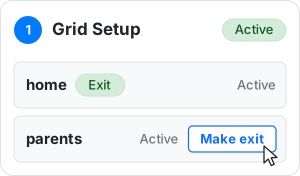
Open the “Grid Setup” list on the dashboard. The current exit Grid shows “Exit”.
-
In the row of the Grid you want as the exit, click “Make exit”.
-
A confirmation message, “This will switch the exit Grid to “…”.”, appears. Check it and click OK.
-
The button changes to “Switching…”. When it finishes, the Grid you chose shows “Exit”.
-
On devices that are connected, disconnect once in the app and then connect again.
If no exit Grid has been set yet, the list shows “No exit Grid is pinned. The exit is selected automatically.” above it. Clicking “Make exit” sets that Grid as the exit.
Troubleshooting
| Message | What it means and what to do |
|---|---|
| “Switching the exit is not available in this environment.” | Switching the exit cannot be used in this environment. The “Make exit” button is no longer shown. |
| “This Grid cannot be made the exit.” | The Grid you chose cannot be the exit right now. Check that the Grid shows “Active”. |
| “Failed to switch the exit: …” | The switch failed. Wait a moment, then click “Make exit” again. |
| “This Grid cannot be deleted because it is currently in use as the exit.” | You cannot delete the exit Grid. Make another Grid the exit first, then delete it. |