How to Access Your Home NAS from a Mac When You Are Away
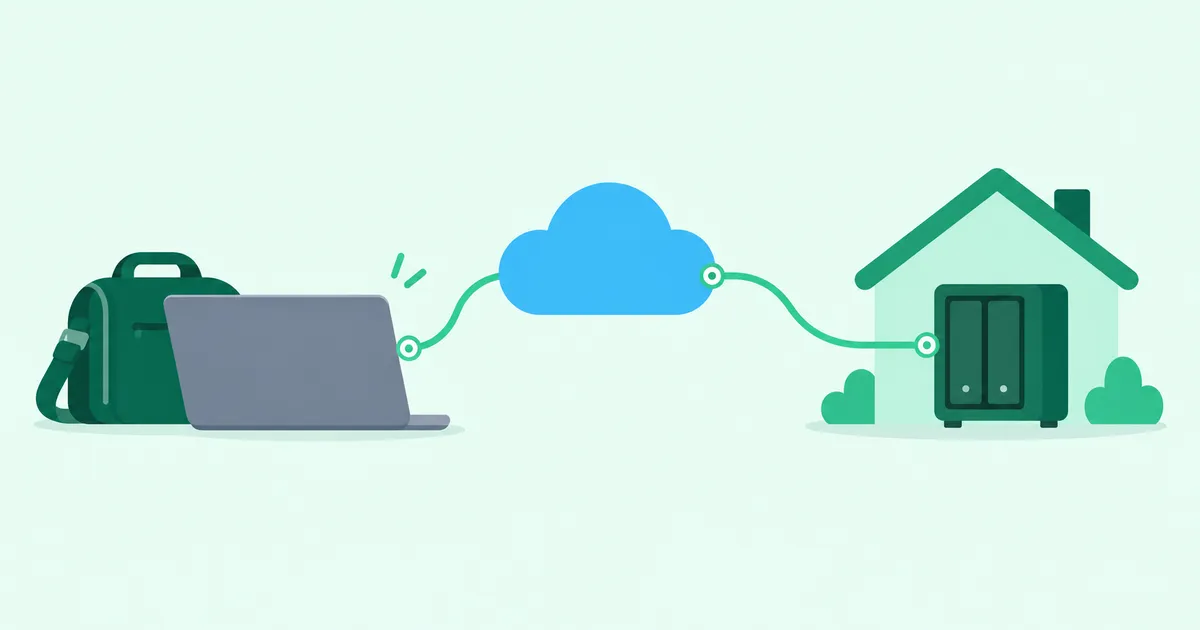
A VPN route to your home LAN lets your Mac open a NAS share in Finder while you are away. macOS includes SMB 3 support. With routing and access permissions in place, you can use the share without exposing the NAS’s SMB port to the internet.
A NAS that opens at smb://192.168.1.100 at home may stop working when you join hotel or café Wi-Fi. That does not necessarily mean the Mac or NAS is broken: the new network has no route to your home NAS.
Start by checking SMB access at home, then configure access over the VPN. All addresses and subnets below are fictional examples; replace them with your own.
1. Why a NAS works at home but disappears when you travel
A typical home LAN might assign 192.168.1.20 to a MacBook, 192.168.1.100 to a NAS, and 192.168.1.1 to the router. On home Wi-Fi, the Mac can connect directly to the NAS.
Hotel Wi-Fi is a different network. A private address such as 192.168.1.100 is not an internet destination that automatically leads back to your house. The missing piece is a route to the NAS, rather than a different Finder command.
2. Finder supports SMB 3
SMB (Server Message Block) is commonly used for NAS and Windows file sharing. macOS supports SMB 2.x and SMB 3.x, so a compatible NAS can usually be opened in Finder without another file transfer app. Apple: SMB 3 connections in macOS
Connect in Finder
Check this on your home LAN first:
- Open Finder.
- Choose Go → Connect to Server, or press
Command + K. - Enter
smb://192.168.1.100and connect. To specify a share, usesmb://192.168.1.100/share. - Sign in with a NAS account and open the shared folder.
Whether you can read, copy, or save files depends on the NAS account’s permissions. Apple: keyboard shortcuts, server address formats
Check the negotiated SMB version
The Mac and NAS negotiate the actual version. After mounting a share in Finder, run:
smbutil statshares -a
Look for SMB_VERSION. For example, SMB_3.1.1 means that connection uses SMB 3.1.1. The -a option reports all mounted shares; it does not discover an unconnected NAS. Apple’s smbutil manual
SMB 3 supports encryption, but an SMB 3 connection is not necessarily encrypted. Check the NAS’s capabilities, settings, and the actual connection.
3. Remote access needs a route and permission
A VPN can provide a route from your Mac to your home LAN. With routing configured, you can enter the same smb://192.168.1.100 address after connecting to the VPN.
A connected VPN does not prove that the NAS is reachable. Routing, access policies, the NAS firewall, and a working return path must also be in place.
Keep SMB off the public internet
SMB commonly uses TCP port 445. Do not forward it through your router or allow it from the internet over IPv6 to make remote access work. Public exposure invites attacks against authentication and software vulnerabilities.
Access the share through the VPN instead. Microsoft: secure SMB traffic at the internet boundary
4. Home connections can restrict inbound VPN access
A traditional home WireGuard server uses a reachable public IPv4 address and UDP port forwarding. Some residential connections cannot provide that combination:
- CGNAT or a building’s upstream router: you may not control the upstream forwarding rules.
- MAP-E: available IPv4 ports are restricted to an assigned set, and router support matters. This is used by some Japanese residential services.
- DS-Lite: typical consumer service does not offer customer-controlled inbound IPv4 forwarding.
- Double NAT: even with reachable public IPv4, more than one router may need configuration.
These conditions constrain direct inbound access; they do not mean every VPN design is unusable. IPv6 direct access also requires inbound firewall rules at home and IPv6 connectivity at the remote location. See what to check before exposing a home VPN for the details.
5. HomeGrid VPN uses an outbound connection from home
HomeGrid VPN uses a Hub & Spoke design. The remote Mac and the home Grid each initiate a VPN connection to a Cloud Hub. The Grid’s outbound connection means that home IPv4 port forwarding, IPv6 inbound rules, and DDNS are generally not prerequisites.
Traffic flows in both directions once connected. “Outbound” describes who initiates the connection. The networks still need to permit outbound VPN traffic to the Cloud Hub.
The dedicated macOS client is available for macOS 15 or later on Apple silicon (M1 or later). Intel Macs and other supported environments can use the official WireGuard app after checking its requirements.
The path to the NAS
Replies return along the reverse path. The NAS continues serving SMB on the home LAN; it does not need its own VPN client. The Grid must be able to reach it, and replies must have a working return path.
The Cloud Hub relays VPN traffic; it is not the storage destination for your NAS files. It is also a different role from the internet exit. When a home Grid is selected as the Internet Exit, internet traffic leaves through the residential ISP. Accessing the NAS is traffic to the home LAN itself.
The Cloud Hub remains part of the path and trust boundary, including its operation and availability. See how HomeGrid VPN routes traffic.
6. Set up your Mac for home NAS access
Step 1: Prepare the home Grid
For an ISO installation, download the ISO from the dashboard, create bootable USB media, boot a suitable PC, complete the automatic installation, activate it with the dashboard-issued token, and connect it to the home LAN. Setup time depends on USB preparation, hardware, and networking.
Keep the Grid running. Check its connection and the registered LAN containing the NAS in the dashboard. See the Grid setup guide for installation choices and detailed instructions.
Step 2: Register the Mac so it can receive LAN permission
The Mac must exist in the device list before you can allow it in LAN ACL. Check the requirements in the macOS downloads section, then:
- Download and open the
.dmg, then drag HomeGrid VPN into Applications. - Launch it from Applications, rather than from the dmg window.
- Follow the first-run prompts to allow the network extension in System Settings. This requires the Mac administrator password. Also allow the VPN configuration to be added.
- In the dashboard, click “+ Add Spoke (QR Code)” to start device registration and select the HomeGrid VPN app registration method. Enter the issued activation token in the app and complete activation.
- Confirm that the intended Mac appears in the dashboard’s registered device list.
Do not share tokens or connection settings. For the official WireGuard app on an Intel Mac or another supported environment, use the configuration-file method in the device registration guide.
Step 3: Allow the NAS’s LAN in LAN ACL
Connecting to HomeGrid VPN alone does not grant access to the home LAN. LAN ACL uses default deny. Set explicit permission for the registered Mac before opening Finder.
- Open LAN access control in the dashboard.
- Check the intersection of the Mac’s row and the destination LAN containing the NAS. On a narrow screen, select the destination LAN in that Mac’s card.
- Confirm that the change has been saved and applied. Application can take up to five minutes.
If the home LAN is actually registered as 192.168.1.0/24, allow that column. A NAS address of 192.168.1.100 alone does not tell you the subnet prefix length. Check the registered destination against your home network settings.
LAN ACL grants access per device and destination subnet. It does not grant access only to one NAS or only to TCP port 445. Allowing a /24 allows that subnet. Select only required LANs, and use NAS firewall rules and account permissions for finer restrictions. See the LAN ACL guide for the dashboard controls.
Step 4: Connect the VPN and open the NAS
Connect the VPN on your Mac and test from a network outside your home. In Finder, press Command + K, enter smb://192.168.1.100, and sign in with your NAS account.
The NAS may not automatically appear under Network in Finder. Discovery traffic does not necessarily cross the VPN, so try the IP address directly.
7. VPN connected, but Finder cannot open the NAS
Check LAN ACL permission and its application first. Then work through the following checks.
Is the right Mac allowed to reach the right LAN?
Check that you did not select another device or destination. A newly registered Mac does not automatically inherit another device’s LAN permissions. Allow the registered subnet containing the NAS, and wait for any pending change to apply before testing again.
If the destination LAN is missing, check the Grid’s LAN registration. Permission applies to a subnet, rather than an individual NAS or SMB port.
Are the NAS address and VPN route correct?
Check whether DHCP changed the NAS address. A DHCP reservation can make it easier to manage. Also check the Grid connection, the route to the destination, and the return path from the NAS.
Do the home and remote networks overlap?
If both your home LAN and hotel Wi-Fi use 192.168.1.0/24, the Mac may send NAS traffic to the hotel’s LAN. The example in this article uses a common range where overlap deserves attention.
You usually cannot change the hotel’s network. While at home, consider moving your home LAN away from common ranges such as 192.168.0.0/24 and 192.168.1.0/24. For example, use 192.168.47.0/24 if it does not overlap with your other networks. No example range guarantees that overlap will never occur.
Update the NAS’s static address or DHCP reservation as needed. Align the Grid’s LAN registration with the new subnet, then check the new destination column in LAN ACL and explicitly allow the Mac again. Do not assume permissions for the old destination carry over. Test after the change applies. Renumbering interrupts local access, so make the change where you can restore the home network in person.
Are SMB, the NAS firewall, and share permissions configured?
If access fails on the home LAN too, check the NAS’s SMB service, share name, and user permissions first. Check whether its firewall rejects traffic arriving through the VPN. Do not casually enable SMB 1 or disable protections such as signing to work around a failure.
Can the Mac reach TCP port 445?
Replace the example address with your NAS address and run this in Terminal:
nc -vz -G 5 192.168.1.100 445
Success establishes TCP reachability to that address and port. It does not prove successful SMB authentication or share access. Failure or a timeout calls for checking LAN ACL, the Grid connection, routing, the NAS listener, and its firewall. This test does not require opening an internet-facing port.
8. Keep the NAS protected
A VPN does not replace the NAS’s own security controls:
- Update the NAS operating system and applications.
- Give each user appropriate share permissions; disable unnecessary management services and public exposure.
- Allow only required destination subnets in LAN ACL.
- Keep a separate backup of important files.
SMB encryption and VPN encryption are separate mechanisms. If you need SMB itself encrypted from Mac to NAS, check NAS support, encryption settings, and the negotiated connection.
Large transfers depend on the home’s upload speed, the remote connection, and latency along the path through the Cloud Hub. Start by reading and writing a small file.
Put routing and permission in place before testing Finder
Finder includes SMB 3 support. Remote use needs a VPN route to the NAS’s private address, LAN access permission, and NAS authentication and share permissions.
HomeGrid VPN initiates its home connection outbound to the Cloud Hub, which supports a design for residential networks with inbound forwarding restrictions, provided the required outbound traffic is allowed. Register the Mac, allow the NAS’s LAN in LAN ACL, then test the VPN connection and file access in Finder.