Add or remove a Linux device with one command
These steps show the screens as of October 2026. If the screens have changed, follow what the dashboard shows.
HomeGrid VPN can add a Linux machine, such as a server or a mini PC, as a Spoke (a device that connects to the VPN) with a single command issued from “Linux (command)” on the dashboard. By default it is a full tunnel, so outbound traffic also leaves from your home; with --split, only your home LAN and the tenant range go through the VPN. To remove it, run sudo /usr/local/sbin/homegrid-spoke --uninstall, then delete the device under “Registered Devices” on the dashboard.
This guide connects a Linux machine as a single device. It is different from “Add a site LAN (VPC)” (the Platinum Linux gateway), which brings a whole LAN into the VPN. For that, see “Connect home, office and cloud LANs with HomeGrid VPN”.
Before you begin
- You need an apt- or dnf-based Linux (Debian, Ubuntu, or the RHEL family) with systemd.
- 1 GB of memory or more is recommended. On a 512 MB machine, installing packages can stop because it runs out of memory.
- You run the command with root privileges (
sudo). - Make sure a Grid is online and there is a free slot in the “Add a Spoke” panel (the same as in “Before you begin” of “Register your own device”).
- The command installs any missing packages itself:
wireguard-toolsandjq, plusnftablesfor a full tunnel when it is needed.
Full tunnel and --split
| Default (full tunnel) | --split |
|
|---|---|---|
| Traffic through the VPN | All IPv4 traffic | Only the tenant range and your home LAN |
| Where internet traffic leaves | Your home (the exit Grid) | The current connection |
| Running it over SSH | Only the current SSH client address is routed outside the tunnel (turn this off with --no-ssh-guard) |
Not needed, because outbound traffic stays on the current connection |
| Refreshing home LAN routes | Not needed | Use --refresh-routes |
- There is no kill switch. If the tunnel drops, traffic goes out over the current connection.
- IPv6 does not go through the tunnel (IPv4 only).
Step 1: Issue the command on the dashboard
-
In the “Add a Spoke” panel on the dashboard, click “+ Add Spoke (QR Code)”. The “Add Spoke” window opens.
-
Enter a name for the device in the “Device name (e.g. iphone-15-pro)” field. Use lowercase letters, numbers, and hyphens (for example,
home-server). -
Click “Linux (command)”. The “Command to install on Linux” window shows two commands: “Default (full)” and “Split (
--split)”.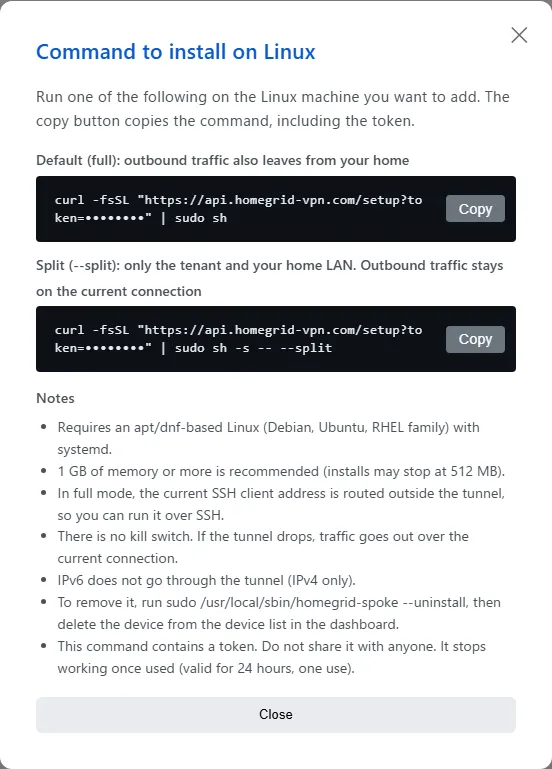
-
Click “Copy” on the row you want to use. The command, including the token, is copied.
The copied command contains a token. Do not share it with anyone. The token works once and expires after 24 hours. The token is masked in the command shown on the screen, so always use “Copy” instead of retyping it.
Step 2: Run it on the Linux machine
Run the copied command on the Linux machine you want to add. It looks like this:
# Default (full tunnel)
curl -fsSL "https://api.homegrid-vpn.com/setup?token=<token>" | sudo sh

# --split (only your home LAN and the tenant range)
curl -fsSL "https://api.homegrid-vpn.com/setup?token=<token>" | sudo sh -s -- --split
For a full tunnel without routing the SSH client address outside the tunnel, add -s -- --no-ssh-guard at the end. If you are connected over SSH, your session may drop.
curl -fsSL "https://api.homegrid-vpn.com/setup?token=<token>" | sudo sh -s -- --no-ssh-guard
The script prints its messages in Japanese. Each line starts with [homegrid-spoke]. When it finishes, it shows the mode (full or split) and the VPN address. The connection comes back automatically after the machine restarts.
To see only the usage, run the URL without a token with --help. Adding -s -- --help to the command issued on the dashboard does not use the token either, so you can still run the same command afterwards.
curl -fsSL "https://api.homegrid-vpn.com/setup" | sh -s -- --help
Check that it is connected
-
The name you entered appears under “Registered Devices” on the dashboard.
-
On the Linux machine, check that the tunnel is running:
sudo wg show wg0
systemctl is-active wg-quick@wg0
If
wg showshows a time for “latest handshake”, the machine is connected to the VPN.
Refresh home LAN routes (when installed with --split)
When installed with --split, only the home LAN ranges known at install time go through the VPN. If your home LAN is added or changed later, or if the ranges could not be fetched during installation (the script warns that it continues with the tenant range only), fetch them again:
sudo /usr/local/sbin/homegrid-spoke --refresh-routes
- A range that matches the LAN this machine is on is not added. The local LAN takes priority.
- This is not needed for a full tunnel. Running it there stops with an error that it works only with
--split.
sudo on the RHEL family does not search /usr/local/sbin, so always run homegrid-spoke with its full path (/usr/local/sbin/homegrid-spoke).
Remove it
-
On the Linux machine, run:
sudo /usr/local/sbin/homegrid-spoke --uninstall -
Under “Registered Devices” on the dashboard, click “Delete” for that device.
--uninstall removes only the Linux side. The device registration stays on the dashboard, so always delete it in step 2.
Check that it is removed
ip link show wg0
systemctl list-unit-files | grep -E 'wg-quick@wg0|homegrid'
ls /usr/local/sbin/homegrid-spoke /etc/homegrid
It is removed when ip link says Device "wg0" does not exist., systemctl prints nothing, and ls says No such file or directory.
What stays after removal
| Removed | Stays | |
|---|---|---|
| Linux machine | The tunnel (wg0) and its autostart, the timer that follows the Hub endpoint, /etc/wireguard/wg0.conf, the saved values in /etc/homegrid, and homegrid-spoke itself |
The packages the command installed (wireguard-tools, jq, nftables) |
| Dashboard | — | The device registration (delete it under “Registered Devices”) |
If /etc/wireguard/wg0.conf was not created by this command, it is left in place and the script prints a warning. Check its contents yourself.
Troubleshooting
| What you see | What it means and what to do |
|---|---|
| The script says it failed partway and is undoing what it set up | It failed after registering, so it removed what it had installed. The token has been used. Delete the device under “Registered Devices” and try again with a new token. |
| The script stops and says the token was not used | It stopped before registering, so the token is still valid. Fix the cause (for example, low memory or a failed package install), then run the same command again. |
An error with HTTP 402 |
Payment has not been confirmed yet. The token was not used. Run the same command again once payment is confirmed. |
An error with HTTP 403 and SPOKE_LIMIT_REACHED |
You have reached your device limit. Delete a device you no longer use under “Registered Devices”, or add more slots. |
A message that /etc/wireguard/wg0.conf already exists |
It is already installed, or another WireGuard setup is using wg0. The token was not used. To install again, follow “Reinstall” below. |
| A warning that DNS is not set | No supported way to set DNS (resolvconf or systemd-resolved) was found, so DNS stays as it is. |
| Your SSH session dropped | A full tunnel routes only the SSH client address from when you ran the command outside the tunnel (none with --no-ssh-guard). Log in from the machine’s console and remove it with sudo /usr/local/sbin/homegrid-spoke --uninstall. |
Reinstall
- Remove it with
sudo /usr/local/sbin/homegrid-spoke --uninstall. - Delete the old device under “Registered Devices”.
- Issue a new token on the dashboard (Step 1) and run the command again (Step 2).
A token cannot be reused. Follow the same steps to switch between a full tunnel and --split.