How to Use OpenClaw with Ollama on Your Home GPU — Without Port Forwarding
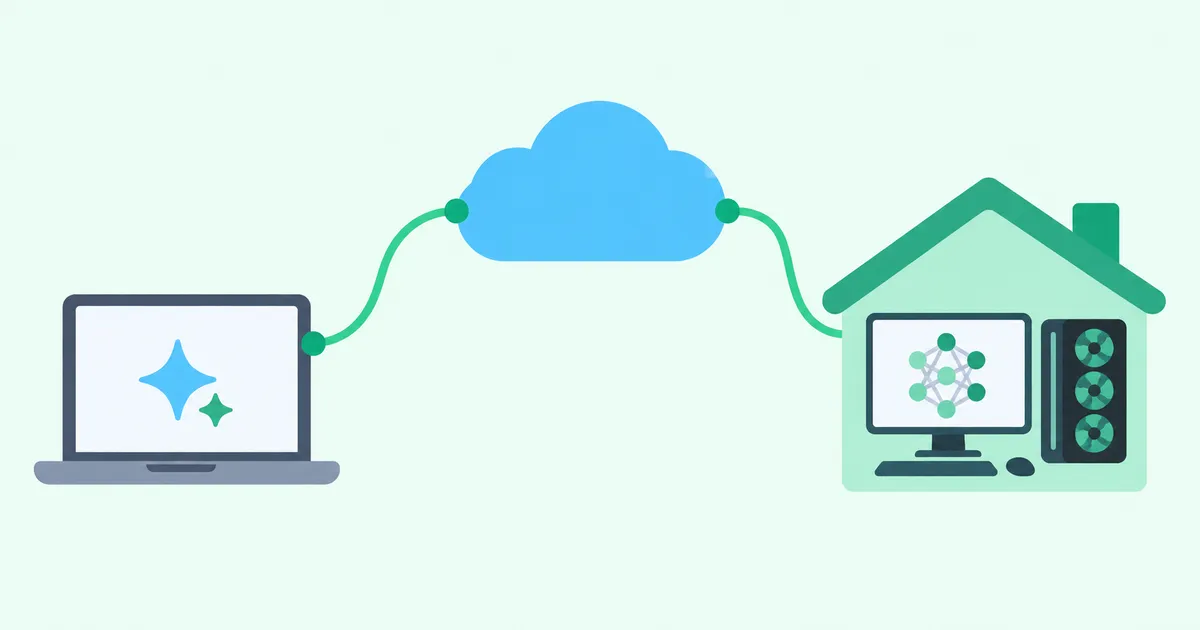
OpenClaw can use Ollama on your home GPU over a VPN without publishing the model API on the internet. Run OpenClaw on the laptop you take with you, and send inference requests to the machine at home. With HomeGrid VPN, the home gateway connects outbound to a Cloud Hub, so this design does not require router port forwarding or internet-facing IPv6 inbound rules at home.
The OpenClaw CLI and Ollama configuration examples were checked against official documentation on October 13, 2026. The complete HomeGrid VPN, OpenClaw, and Ollama setup has not been tested on physical devices. Check network reachability, API responses, model inference, and agent tool execution separately. Details may vary with your OS and software versions.
Start with reachability, not the model configuration
A home GPU can keep working while your laptop is elsewhere. The first obstacle is giving that laptop a private route to the inference server.
Ollama listens on 127.0.0.1:11434 by default. That accepts connections from the same computer; another computer cannot reach that listener through the server’s LAN address. Changing the listener and establishing a route from outside the home are two separate tasks. Ollama FAQ
Even after the API works from another device on your home LAN, your remote laptop still needs a route to that LAN. Verify each step before configuring OpenClaw.
A public reverse proxy increases the risk of intrusion at home
Publishing a reverse proxy at home and forwarding requests to Ollama adds an internet-reachable service to your home network. Vulnerabilities in the proxy or upstream application, configuration mistakes, and leaked credentials can become entry points into your systems. Compared with keeping those services private, this increases the risk of intrusion.
HTTPS and Basic authentication do not remove that exposure. Authentication is one layer; you also need updates, access controls, log review, and isolation if a service is compromised. Ollama’s local API does not require authentication by default. Ollama authentication documentation
For access from your own devices, you can keep the API private and provide a VPN route to the home LAN instead. The conditions behind port forwarding, IPv6 direct access, and P2P connectivity are covered in what to consider before exposing a home VPN endpoint. This article focuses on the Ollama connection procedure.
Keep OpenClaw on the laptop and inference at home
There are four components:
- Remote PC: runs OpenClaw and the VPN client.
- Home AI PC: runs Ollama and the local model.
- Home Grid: connects the VPN to the home LAN. Here it is a separate gateway device, not the Ollama computer.
- Cloud Hub: relays VPN traffic between the remote device and the Grid.
The Cloud Hub is a relay on the path. Accessing this LAN API does not require configuring an internet exit. Routing internet traffic through your home connection is a separate setting. The Cloud Hub is part of the path, so include it in your operations and availability planning.
Moving inference to your home PC does not move OpenClaw’s tools there. File access and command execution still follow your tool configuration and execution environment.
Prerequisites
- Ollama is running on the home PC, and that PC can run your chosen local model.
- A Grid is active and connected to the home LAN.
- The remote PC has OpenClaw and a supported VPN client.
- The Ollama PC has a stable LAN address, using a static configuration or DHCP reservation.
- The remote and home LAN address ranges do not overlap.
192.168.50.10 below is a fictional example address. Replace it with your Ollama PC’s LAN address, and replace the model name with one your hardware can run.
Step 1: Make Ollama reachable on the home LAN
On the home PC, check your installed models:
ollama list
Choose a model with tool support and a context size your RAM or VRAM can handle. The examples use qwen3:32b, which also appears in OpenClaw’s official provider configuration. That is a configuration example, not a claim that every GPU can run it.
Configure a Linux systemd service
Set OLLAMA_HOST in the service environment. Binding to the stable LAN IP narrows the listener compared with binding to every interface.
sudo systemctl edit ollama.service
Add the following in the editor:
[Service]
Environment="OLLAMA_HOST=192.168.50.10:11434"
Save, then reload and restart the service:
sudo systemctl daemon-reload
sudo systemctl restart ollama
The macOS and Windows apps apply environment variables differently; follow the OS-specific Ollama instructions. If a service already runs Ollama, do not start a second ollama serve process.
Changing the listener does not add authentication. Use the home PC’s firewall to allow TCP 11434 only from the sources that need it. Set up the source restriction after you confirm the remote source address in Step 3. Do not add router port forwarding, automatic UPnP exposure, or internet-facing IPv6 inbound permission for this setup.
Binding to a LAN address does not restrict access from other LAN devices. Enforce that separately with the firewall.
From another device on the home LAN, check the API. On Windows, use curl.exe in place of curl if needed.
curl --connect-timeout 5 http://192.168.50.10:11434/api/tags
A model-list JSON response confirms API reachability from the LAN. It does not verify inference or tool calling. Ollama API: List models
Step 2: Register the remote Spoke and allow access to your home Grid’s LAN
- Register the PC running OpenClaw through the dashboard’s “Add a Spoke” panel.
- Connect its VPN client. Follow the device registration guide for the client you use.
- In “LAN access control”, check the box where that Spoke’s row meets the destination LAN column for your home Grid’s LAN.
- Confirm the applied status: the ✓ indicator in the PC table, or “Applied” in the phone view.
Registering a Spoke alone does not grant LAN access. LAN ACL is default deny. Checking this destination grants that Spoke access to the LAN behind the home Grid. The LAN access control guide also covers the dashboard’s phone layout.
This checkbox grants LAN access, not a rule limited to Ollama or TCP 11434. Apply service-level restrictions through the home PC’s firewall or equivalent controls.
Step 3: Check the API from outside your home network
Disconnect from home Wi-Fi, connect the VPN, and run the same check on the remote PC:
curl --connect-timeout 5 http://192.168.50.10:11434/api/tags
If you receive no JSON response, troubleshoot the network before changing OpenClaw. If it succeeds, note the exact model name in the response.
Restrict the firewall to the remote source
Immediately after running the curl check from the remote PC, inspect Ollama’s logs on the home PC. For a Linux systemd service, use:
journalctl -u ollama -n 20
Find the /api/tags entry matching the request time and check its source IP address. Allow TCP 11434 from that address in the home PC’s firewall, and remove unnecessary allowances for other sources. For log access permissions and OS-specific locations, see the Ollama troubleshooting documentation.
After applying the rules, repeat the check from the remote PC:
curl --connect-timeout 5 http://192.168.50.10:11434/api/tags
Confirm that it still returns JSON. If there is no request entry in the logs, check the listener, routes, and possible firewall blocks. Do not publish the API on the internet or disable the entire firewall to identify the source.
The VPN protects the path from the remote device to the Grid. In this example, the remaining home LAN segment from Grid to Ollama uses HTTP. If your threat model includes interception on that LAN, protect that segment separately, for example with host isolation or internal HTTPS.
Step 4: Point OpenClaw at the native Ollama API
Install OpenClaw using its official installation instructions. For initial setup, run openclaw onboard and select local Ollama use. Back up any existing configuration before changing it. OpenClaw Ollama setup
The JSON below is a configuration fragment to merge into your existing settings, not a replacement for the entire file. Locate the active file with openclaw config file. Back up the file before editing it.
openclaw config file
{
  "models": {
    "providers": {
      "ollama": {
        "baseUrl": "http://192.168.50.10:11434",
        "apiKey": "ollama-local",
        "api": "ollama",
        "models": [
          {
            "id": "qwen3:32b",
            "name": "qwen3:32b"
          }
        ]
      }
    }
  },
  "agents": {
    "defaults": {
      "model": {
        "primary": "ollama/qwen3:32b"
      }
    }
  }
}
Use the exact model name reported by ollama list or /api/tags for id and name, and match it in primary. Leave /v1 off baseUrl. The api: "ollama" setting selects the native Ollama adapter. OpenClaw Ollama configuration
apiKey: "ollama-local" is OpenClaw’s marker for a local or private LAN Ollama endpoint. It is not a secret that adds authentication to Ollama.
Validate the saved configuration and check model recognition:
openclaw config validate
openclaw models list --provider ollama
Once validation succeeds, restart the Gateway using your deployment’s normal startup method. Send a short request through OpenClaw, then test a low-impact tool operation. A model appearing in the list does not prove that inference or tools work. OpenClaw Config CLI
Troubleshoot one layer at a time
| Symptom | What to check |
|---|---|
| The API is unreachable even on the home LAN | Ollama service, listener address, LAN IP, and OS firewall. |
| It works on the LAN but not over the VPN | VPN connection, Grid status, permission for your home Grid’s LAN and its applied status, routes, and overlapping subnets. |
| “LAN access control” has no column for your home LAN, or shows “No destination LANs. …” | Whether the Grid’s LAN is registered as a destination. For a Docker Grid, the destination is the “Your home LAN subnet (CIDR)” entered when creating it. Refer to the LAN access control guide linked in Step 2. |
| Connection refused | The destination may be reachable; check for a missing listener or a firewall rejection. |
| Connection timeout | Check routes and possible firewall drops. A timeout alone does not identify the cause. |
| The API responds, but OpenClaw fails | Reachability from OpenClaw’s own runtime, baseUrl, api, exact model name, and whether the configuration is active. |
| Text generation works, but tools fail | Model tool support, context size, OpenClaw tool permissions, and the execution environment. |
| Responses are slow | GPU, RAM and VRAM, model loading, context size, and network quality. Do not assume the VPN is responsible. |
If OpenClaw runs in Docker or WSL, a successful curl on the host PC is not enough. Run the API check from the environment that actually runs OpenClaw.
Limit both network access and agent permissions
This design avoids adding a public Ollama API or reverse proxy at home. It does not eliminate the consequences of a compromised VPN device or overly broad OpenClaw permissions.
Grant OpenClaw only the folders and tools it needs. Require review before important file changes or external actions. Manage credentials, installed skills and plugins, and software updates as well. OpenClaw security documentation
Home inference also does not guarantee that all data stays at home. Search tools, external integrations, and cloud-model fallback can send data to other services when enabled.
You can use your home compute from elsewhere while keeping its API private. First establish API reachability over the VPN, then verify OpenClaw inference and tool execution. For the next step in reducing exposure and separating networks, see reducing attack surface with WireGuard.