Data Breach Prevention for Small Businesses: Reduce Exposed Entry Points
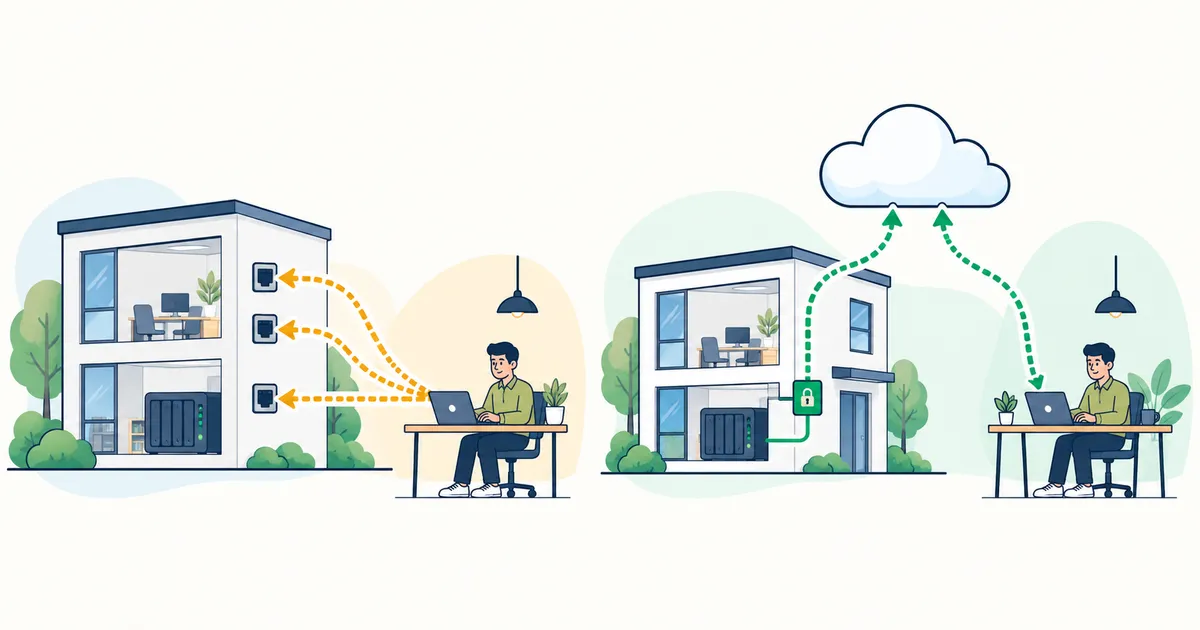
Getting every data breach safeguard right from the start is difficult. Even so, small offices and home offices (SOHO), sole proprietors, and companies with just a few people can begin by reviewing entry points reachable from outside and the permissions attached to them—even without dedicated IT staff.
This article focuses on three steps:
- Identify exposed entry points used for maintenance and close unnecessary direct exposure.
- Allow a contractor’s device to reach only the LANs needed for the job.
- Remove its VPN access from the dashboard when the work is finished.
Keep necessary work running while reducing one entry point an attacker could target. Here is the reasoning behind that approach, followed by a configuration and workflow using HomeGrid VPN.
Are entry points opened for work still in place?
You may need to reach a NAS in your home office from elsewhere, or let a contractor maintain a small company’s business server. A VPN or remote desktop connection may have been set up for that purpose.
A connection that was necessary at the time can remain after the working environment or the person responsible has changed. A former contractor’s account may still exist. A port opened for testing may never have been closed. Nobody may know who is responsible for updating an exposed device.
In a small business, the owner or a single employee may handle these tasks alongside their everyday work. Before investing in more infrastructure, reviewing the connections you already have is a practical step toward preventing data breaches.
A VPN can also become an attacker’s way in
A VPN provides access to a network from another location. Encrypting traffic, however, is a separate matter from preventing compromise of the device or account that accepts the connection.
Japan’s National Police Agency describes intrusions through internet-exposed VPN equipment and similar devices, using unpatched vulnerabilities, leaked credentials, weak passwords, or configuration errors. Attackers may then steal data and threaten to publish it.
Source: National Police Agency: Ransomware prevention measures (Japanese)
It would be a mistake to attribute every incident to a vulnerability in a VPN appliance.
An investigation report published in December 2025 by ASKUL, a major Japanese office-supplies retailer, describes unauthorized use of an administrator account belonging to a contractor. Multi-factor authentication had not been applied to that account as an exception. The report found no evidence of intrusion exploiting vulnerabilities in VPN equipment.
Source: ASKUL: Investigation into the ransomware attack and measures to strengthen security (Japanese PDF)
Even a large company can be breached through an account issued to a contractor. Although the scale and architecture differ, small businesses face the same questions: who can connect, what can they reach, and do permissions remain after they are no longer needed?
Start with one maintenance connection
Trying to examine the entire network at once can make it difficult to get started. Choose one connection used by an outside contractor first.
| Question | Example |
|---|---|
| What is the connection for? | Maintaining a NAS or updating a business server |
| Who uses it? | Your employee or a current maintenance contractor |
| Where do they enter? | A public VPN endpoint, SSH, or remote desktop |
| What can they reach? | Only the target LAN, or other LANs too? |
| How long is it needed? | For this job only, or on an ongoing basis? |
| Who manages it? | Your business or the contractor who configured it? |
Ask the contractor who set it up about anything you cannot determine. Close unused entry points after checking the impact on your work.
For connections you still need, review device updates, authentication, and user permissions. Then consider this question:
Does this connection require your business to accept incoming connections from the internet?
From accepting connections to initiating them
When a VPN appliance at your premises accepts outside connections, you manage its public exposure, updates, and authentication. This arrangement can be operated with appropriate maintenance.
Another approach is for the device at your premises and the contractor’s PC to each connect to a relay in the cloud.
| Connection model | What the device at your premises does |
|---|---|
| Accept connections at your premises | Listen for connections from outside |
| Connect to a relay | Initiate an outbound connection |
The second model reduces the need to create a direct entry point at your premises, such as forwarding a port on your router for maintenance access.
Exposed entry points still exist: this design consolidates them at the relay instead of exposing them separately at your premises. The relay’s operation and availability are also factors to evaluate when choosing a service.
You can build this type of configuration yourself or use a managed service. Compare the scope of public exposure alongside the effort needed to configure, update, and manage access permissions.
Terms used in HomeGrid VPN
HomeGrid VPN uses a hub-and-spoke design in which sites and devices connect to a relay in the cloud. This article uses the following terms:
| Term | Meaning in this article |
|---|---|
| Cloud Hub | A cloud relay that connects VPN paths between sites and devices |
| Grid | A device at an office or another site that connects its LAN to the VPN |
| Spoke | A participant that connects to the Cloud Hub; in the maintenance workflow, the contractor’s invited and registered device |
| LAN ACL | A feature that controls which destination LANs each registered device may access |
| hub-and-spoke | A topology in which sites and devices connect to a central hub |
Because the Grid at your premises initiates an outbound connection to the Cloud Hub, the design generally does not require port forwarding on your router or a direct connection to your public IP address.
Once established, the VPN path carries traffic in both directions. Initiating a connection outbound therefore still requires access controls for the destinations reachable through it.
Manage exposed entry points and permissions from the dashboard
HomeGrid VPN combines changes to the connection path with registration, permission assignment, and removal of contractors’ devices.
The following table compares this workflow with an arrangement that exposes VPN appliances or similar endpoints and distributes connection settings individually. It does not mean that every other VPN product lacks comparable features.
| Common issue with the existing setup | Configuration or workflow with HomeGrid VPN |
|---|---|
| Each site exposes and manages its own VPN endpoint | Each site connects outbound to the Cloud Hub, consolidating exposed entry points |
| SSH or remote desktop is exposed directly for maintenance | Move access through the VPN and close direct exposure that is no longer needed |
| Connection settings are distributed individually | Generate an invitation link in the dashboard and send it to the person doing the work |
| A contractor can also reach unrelated LANs | The contractor’s device cannot access any LAN until permitted; allow only the required connections in the device-by-destination-LAN matrix |
| VPN access remains after maintenance ends | Delete the Spoke from the dashboard; once the change takes effect, its existing key can no longer reconnect |
LAN ACL is a stateful control that specifies which devices may initiate connections to which LANs and also handles return traffic for permitted connections. LAN ACL is default deny. Inviting a contractor’s device does not, by itself, give that device access to your business LAN.
Invite the device, then allow only the LANs it needs. That is the order for preparing access.
Make inviting, permitting, and removing part of the maintenance workflow
Arrange access for a maintenance contractor as follows:
- Generate an invitation link from the dashboard.
- Send it directly to the intended person using an organization-approved channel, such as Slack, Microsoft Teams, or email.
- Have that person register their device by following the invitation steps.
- In the dashboard’s LAN ACL, allow the contractor’s device to access the LAN containing the maintenance target.
- Confirm that the settings have taken effect, then check that the target is reachable and unpermitted LANs are not.
- Perform the maintenance work.
- When the work is finished, delete the maintenance Spoke from the dashboard.
An invitation link is valid for 24 hours and can be used once. Anyone who opens a valid link can register their device, so send it individually to the intended person rather than posting it in a public channel.
For issuing, sharing, and registering with an invitation, see Invite someone else’s device.
LAN ACL changes can take up to five minutes to apply. Confirm that the dashboard shows the settings as applied before testing access. Deleting a Spoke may also take a few minutes to take effect. Do not assume access is revoked immediately after clicking delete; confirm that the device can no longer connect after the change has applied.
Once deletion takes effect, the Spoke’s existing key cannot reconnect. The administrator can revoke access without relying solely on the contractor to erase settings from their PC.
For configuration steps, see Control which devices can reach each LAN with LAN ACL.
Define network access before managing every individual operation
Development and maintenance involve investigation, configuration changes, data checks, and other operations that vary with the task. Designing and maintaining detailed authorization for every operation can be a significant burden for a small business.
Start with the scope you can manage at the network level: allow the LANs needed for the work, block unrelated LANs, and remove access when the job is finished.
LAN ACL does not replace permissions within business applications. You can still review network access without waiting until a detailed authorization design is complete.
Close old entry points after preparing the new connection
Adding HomeGrid VPN leaves old VPN appliances and exposed SSH or remote desktop endpoints as potential attack targets if they remain accessible.
Once you have confirmed that necessary work can be done through the new path, close the settings that are no longer needed:
- Unused port forwarding rules
- Unnecessary inbound firewall rules
- Old VPN accounts
- Access permissions for contractors whose contracts have ended
Even when you outsource the work, go beyond confirming that the connection works. Check what was closed and what remains accessible.
For a closer look at direct home VPN exposure and residential connection conditions, see Home VPN Not Connecting? Consider Your Home IP Before Forwarding Ports.
Review the remaining safeguards and start with one connection
Reviewing exposed entry points and permissions does not complete every data breach safeguard. Protecting the Cloud Hub and dashboard, updating devices and Grids, and configuring permissions at the destination remain necessary.
Apply multi-factor authentication to the administrative and business accounts you retain wherever the service supports it. Check that contractor accounts have not been made exceptions. Address vulnerabilities in public web applications, and separately maintain isolated backups and verify restoration.
With those responsibilities in mind, choose one upcoming maintenance task:
Whose device should reach which LAN, and for how long?
To start with HomeGrid VPN, consider a configuration with one Grid connected to your office LAN and a registered device for the maintenance contractor. The Grid needs power and a connection that can reach the Cloud Hub. Check that authentication and firewall settings at the maintenance target also allow the intended access.
There are three Grid installation methods: the install command on a supported Linux machine, Docker on a NAS or Linux machine or through Docker Desktop on a desktop PC, and the virtual appliance on a mini PC or VM. Choose according to the equipment and its operating requirements.
Once you have checked the intended connection layout, follow Add a Grid for registration. Before installation, review pricing and terms on the HomeGrid VPN official website.
Installing the service alone does not complete your safeguards. Even so, SOHO users and small businesses without dedicated IT staff can start by reducing exposed entry points while keeping necessary work running.